


The trusty Word document – a canvas for all your ideas, stories, and meticulously formatted resumes. But let’s be real: Word docs
But don’t despair! With a little know-how, you can transform your Word doc into a jazzy JPG and share your brilliance with the world (or at least your Facebook friends).
Let’s dive into the how and the why of turning your DOC or DOCX file into an image worthy of Facebook fame.
Why convert Word to a JPG picture?
Converting a Word file into a picture format like JPG has numerous practical and creative benefits. One of the main reasons is the ease of sharing content – many social media platforms don’t allow direct uploads of Word documents, but their platforms are great for sharing all sorts of information. Artists and creators might want to share event posters or promotional material. Teachers and students might be posting lecture notes, class schedules or study guides. For those of you feeling extra proud, you might want to share your resume or information on your a latest project. So how do you share your Word document on a platform like Facebook?
The solution is to transform your Word file into a picture file such as a JPG, which can be easily uploaded to Facebook. A JPG is a static image file – it’s instantly viewable and ideal for social media posts and emails. What’s more, Word-to-JPG conversion ensures that your formatting, fonts, and design stay intact. This means that your document will look the same, regardless of which digital device or software it’s being viewed with.
Imagine this:
- Aunt Mildred the Recipe Queen has finally typed out her long-secret lasagne recipe. She wants to immortalise it on Facebook without losing her quirky fonts and themed headers.
- Sandra the Small-Business Owner wants to share her café’s latest seasonal menu with her customers on Facebook. She needs a statement eye-catcher on her page and something far more engaging than a dull ‘menu attached’ comment.
- Ryan the Rockstar Freelancer has a killer portfolio layout in Word but needs to show it off as a single, polished image.
- Dave the Dependable Volunteer has penned a great advert for a charity fundraiser event. He wants to share it with his online audience to get as many people there as possible.
- Dr Patel the Preventative Care Specialist has just generated a step-by-step guide to reducing workplace stress. They’re running a seminar on the topic and will be inviting colleagues to attend, so they need to promote it on social media.
In short, converting a DOC or DOCX file to JPG is your gateway to uploading a Word document to Facebook and sharing info in a way that’s visually appealing and universally accessible.
How to convert a Word document to JPG
You’ve got your ‘why’ sorted but now you need the ‘how’. We’ve pulled together a step-by-step guide below for you to take that Word doc from blah to ta-da!
Step 1: Prep your Word document
First things first, you need to make sure your Word document looks exactly how you want it to appear in the image. Fonts should be tidy, with correct spacing. Get those tables or graphs aligned and double-check your colour scheme. What you see right now, is what you’ll get in the final JPG.
Step 2: Visit the Zamzar online converter
Next, you need to open your favourite browser and visit www.zamzar.com.
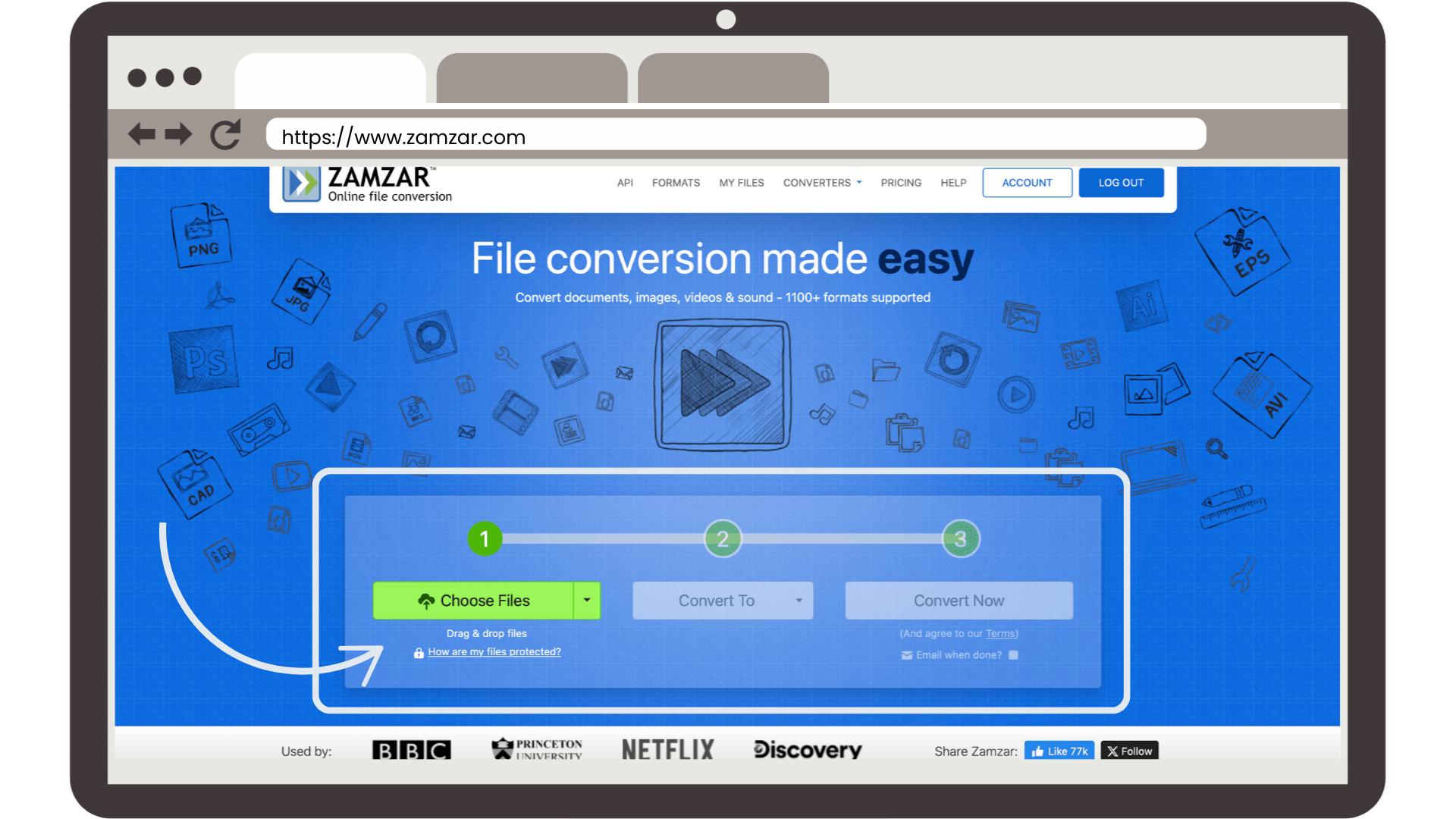
Once you’ve got that opened, you’ll see the homepage of Zamzar and a handy homepage conversion tool. This is what you’ll be using to convert your file.
Step 3: Convert to JPG
Now you’ve got the converter in front of you, click on the green ‘Choose Files’ button and select your Word file from your computer and upload it. Another option is to find the Word file in your computer folder and drag-and-drop it onto the conversion page.
Under ‘Step 2’ on the conversion tool, select ‘JPG’ as your ‘Convert To’ option. Then hit ‘Convert Now’ and your conversion from DOC or DOCX file to JPG will start.

Once your conversion to JPG is complete, you can download it to your device from the same page by clicking the ‘Download’ button. The file should automatically be saved to your downloads folder.
How to upload your JPG to Facebook
With your new JPG downloaded, its time to head to Facebook to upload it.
Log in to your Facebook account, then click ‘Photo/Video’ in the ‘What’s on your mind’ post box:

The window should expand and you can click on ‘Add photos/videos’:

You can then select your new JPG from where it’s saved on your device and attach it to your post.
Add a caption if you like, and voilà! Your image is now ready to post to Facebook. Just click the blue ‘Post’ button to make the post live:

Top tips for uploading a document to Facebook
- Add some pizzazz: Before uploading your Word file for conversion, why not try to add a few borders, icons, or colour tweaks to make your image really pop.
- Break it up: If your Word document is long, divide it into multiple pages that can then be made into multiple JPGs for a scroll-worthy Facebook album.
- Keep it crisp: To ensure your text doesn’t blur, make sure you have chosen fonts that can be read easily and that the text in the image will be large enough for the audience you want to share it with.
- Make it accessible: Remember that text contained in images can’t be read by screen readers (such as those used by people who are blind). To make sure everyone can access your content, include the text from your Word document in your image’s alt text too (this is the image description that screen readers can read). To do this, once you’ve selected your JPG image to add to a post, click on the ‘Edit’ icon on the image, then click on ‘Alternative text’. Add your text into the ‘Custom alt text’ box (you can copy and paste the text from Word), and click ‘Save’.
Now you have your step-by-step guide on how to upload a Word document to Facebook. Don’t let your documents languish on your desktop when you want to share them with others. Simply turn your Word document into a JPG and let your genius shine bright on your Facebook timeline! Whether you’re sharing recipes, menus, manifestos, or events, this method ensures your content gets the attention it deserves! Try it out for yourself now, at www.zamzar.com.