


I’m sure you’ve also experienced the frustration of being sent a file you can’t open. The attachment sits there in your inbox, the person who sent it is waiting on a reply, and your computer just shrugs at it.
That’s the problem our new Zamzar PDF and document viewers solve for you. You can open a document with Zamzar and read it in your browser straight away, with nothing to install and no conversion needed first. There are viewers for eight different document formats, and each one comes with proper reading controls, such as zoom, rotation, and page layouts settings, as well as options for printing, taking screenshots and exporting. The PDF viewer goes further still, letting you search, highlight, annotate, comment, e-sign, insert images or form fields, and black out anything sensitive before the file goes anywhere else.
What file formats can you view with Zamzar’s document viewers?
Our document viewers support eight different file formats:
- DOC and DOCX (Microsoft Word documents). DOC is the older Word format, from before Office 2007, and DOCX is the current one. Both open in the Word viewer, so it doesn’t matter which version of Word your sender is loyal to.
- PDF (Portable Document Format). This format preserves the layout of text and images in a document, meaning the file will look identical wherever it’s opened. It’s the format most contracts, invoices and forms are in, but can be difficult to edit without specialist software.
- PUB (Microsoft Publisher). Often used for newsletters, flyers, brochures and posters, PUB files are famously awkward to open without Publisher installed.
- XLS and XLSX (Microsoft Excel spreadsheets). XLS is the pre-2007 spreadsheet format; XLSX is the modern one.
- PPT and PPTX (Microsoft PowerPoint presentations). These are common presentation formats, with PPT as the older version and PPTX as the newer one.
How to view a file with Zamzar’s PDF and document viewers:
This step-by-step guide uses the PDF viewer, but the steps are the same for Word, Excel, PowerPoint and Publisher files.
1. Open the viewer.
Head to the PDF viewer page at https://www.zamzar.com/tools/pdf-viewer/:

2. Add your file.
Drag your PDF onto the page, or click Choose Files to browse for it from your device folders (as shown below):

3. Give it a moment to upload.
Once you add the file, it’s automatically uploaded to the viewer. A lightweight file like a two-page letter will appear almost instantly. A larger file, such as a 200-page manual full of photographs might take slightly longer, depending on your internet upload speed. You can see the progress of the upload in the green bar:

4. View your file!
Once the file has completed uploading, you’ll be able to view it in the document viewer:

What tools do Zamzar’s PDF and document viewers come with?
Controls you get with every document viewer:
Document menu: print, screenshot, export and fullscreen
Print sends the document to your printer. Screenshot captures what you’re looking at as an image, which is handy when you want to drop one paragraph or one chart into a message. Export saves a copy to your device. Fullscreen makes your document fill your whole window and gets everything else out of the way.

Sidebar
Use the sidebar to move through a long document and find the section you need, instead of scrolling through it.

Page settings
Spread mode lets you read one page at a time, or in two-page spreads starting on either an odd or an even page, so a booklet or a brochure lines up the way its designer meant it to. Scroll layout switches between scrolling down the document and scrolling across it. Page rotation turns pages clockwise or anti-clockwise, to rescue documents that were scanned in sideways.

Zoom in and out
Zoom in to see the detail on the page, like small print in a contract or individual cells in a spreadsheet with thirty columns crammed onto one page. Zoom out to see the whole document at once.

Pan and pointer modes
You can use the pan tool (the hand icon) to grab the page and drag it about, like sliding a sheet of paper across a desk. This is the one you want once you’ve zoomed right in and need to travel across a wide page. Switch to pointer mode (the arrow icon) to get a cursor you can use to select, highlight and copy text out of the document, ready to paste somewhere more useful.

Page tabs
Use the page tabs to skip straight to the next page instead of scrolling for it. Definitely a time saver when you have a 40-page report!

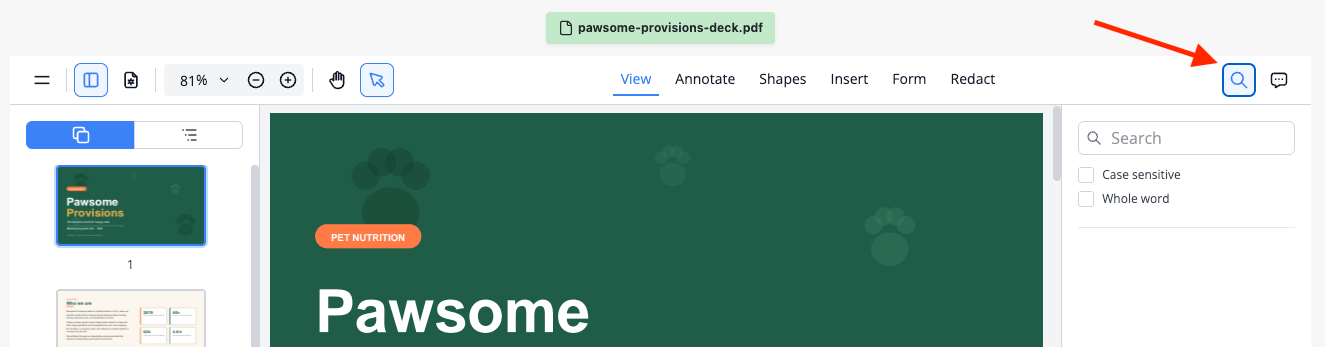
Search
Type a word or a phrase and go straight to it (which beats reading 60 pages of terms to find the one clause about notice periods!).
The extra tools in the PDF viewer:
PDFs tend to be the files that other people want us to do something with, so the PDF viewer comes with a fuller kit on top of the controls above:
Comment
Leave notes for a colleague, a client, or for yourself (so you remember why page 12 mattered so much when you come back to the document a week later). Just add any annotation (e.g. highlight or underline text or add a comment icon) to leave a comment associated with that marker.

Annotate
Call out specific parts of the document for attention using the annotation tools. You can highlight, underline or strikethrough sections, add text or add comment or callout markers.

Draw shapes
Add circles, arrows, lines and boxes to draw attention to the exact thing you’re talking about.

Insert stamps, signatures and pictures.
Add a rubber stamp to indicate things like whether the document is a draft or final version, and to mark places where signatures or initials are needed. You can also add an e-signature, or insert an image into the PDF.

Add form elements
Insert text fields, checkboxes, radio buttons, drop-downs and list boxes, then switch on fill mode to complete the form you’ve just built.

Redact
Black out anything you’d rather other people didn’t see, like a bank account number or your home address, before the file goes any further.

Because all the tools are available in the document viewer, you can access them from any device with an internet browser. There’s no need to download and install any separate software.
When a document viewer comes in useful
A file arrives in a format you can’t open. The classic is a PUB file for a school newsletter or a village fête poster, sent by the one person in the group who owns Publisher and has never once known this to be a problem. Opening the file in the viewer takes seconds and saves an entire email thread of “any chance you could send it as a PDF?”
You’re on a borrowed or locked-down computer. Library machines, hotel business centres and work laptops without an Office licence all leave you holding a file you can’t read. A browser is enough here.
You need to sign something and send it back today. Just open the PDF in the document viewer, add your signature, and export the file. There’s no printing, no hunting for a pen that works, and no scanning it back in slightly crooked.
You’re sharing a document with private details in it. Payslips, bank statements and utility bills get used as proof of address and proof of income all the time. Redacting the account numbers first keeps the useful part visible and your private details hidden.
You’re reviewing someone else’s work. Highlights, underlines, comments and arrows let you give feedback on the document itself, so you don’t have to describe “page 4, third paragraph, the bit about timings” in a separate email.
You’re away from your desk. Spreadsheets and slide decks are hard going on a phone. Zoom, pan and two-page spread mode make it possible to check a set of figures or skim a deck on the train, without installing anything.
A couple of things worth knowing
The document viewers are built for reading and annotating files rather than rewriting them. To change the wording of a Word document or the formulas in a spreadsheet, you’ll want the original software application. Alternatively, you could use Zamzar’s file conversion tool to change your file into a format your software can open for editing.
It’s also worth bearing in mind that complex layouts can shift a little on screen, particularly Publisher files and documents built with unusual fonts. If exact positioning matters, e.g. for a print-ready brochure, make sure to get someone to double-check the file in its native software before a finalised version is sent or it goes to print.
Conclusion: No software needed; view PDFs and documents right from your browser
Whether you want to give a document a quick glance over, or need to provide detailed feedback on a PDF for a colleague, Zamzar’s PDF and document viewers save you time by providing the tools you need right from within your browser. There’s no wasting time searching for and installing hefty software, and no need to get to grips with a complicated new program. Just upload your file to one of the document viewers on Zamzar’s site, and you’re ready to go!
You can access all the document viewers directly using the links below:
Let us know what you think and if there are any other features you’d like to see. You can drop us an email at support@zamzar.com. All emails are read by our 100% human customer support team, and we love to hear your feedback!
Happy file viewing!
[Cover photo by Vitaly Gariev.]


